Generic Setup
Important: Verify with your integrator or distributor that the Philips panel has the latest firmware installed to prevent issues during setup and operation.
Using the Remote
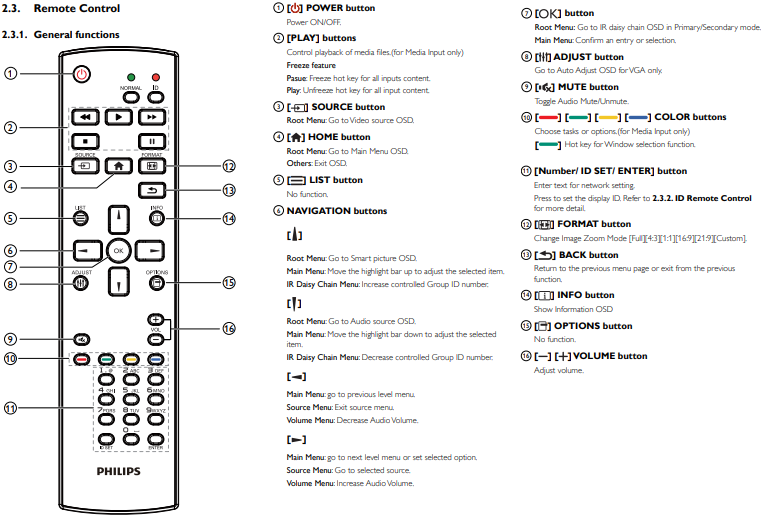
Use the Philips remote to navigate through the setup and configuration menus.
Initial Screen Setup
Connect the screen to power.
On the welcome screen:
Use Up and Down arrows to select your preferred language.
Press Right Arrow and then click Start.
Network Settings (optional, can be skipped and configured later):
Choose WiFi or Ethernet depending on your requirements.
For WiFi:
Press the Right Arrow to Next.
Select your WiFi Access Point.
Enter your WiFi password (press Return to open the on-screen keyboard).
Click Next.
Signage Display Settings:
Navigate to Skip.
Click Setup Complete and then Finish.
Prepare USB with Fusion Signage APK
Download the latest APK: https://fus.app/a.apk.
Caution:
Do not extract the APK file; copy the single APK file directly to the root of your USB drive.
Insert the USB into the Philips screen.
Note:
BDL4050D models are now legacy and do not support the latest app versions.
For these models, download version 2.3.8 from here.
Install Fusion Signage on Android Devices
Use your remote to press Home, 1, 8, 8, 8 to access Android settings.
Navigate to Apps.
Select File Manager, then MNT, then USB Storage.
Locate the APK file (fusion-signage.apk) on the USB.
Follow the on-screen prompt to install the app.
Once installed, press Return to go back to the main menu.
Assign Fusion Signage to a Custom Input Source
Press Home, 1, 8, 8, 8 (if not already in Android settings).
Select Settings > Device > Signage Display.
Under Source Settings, choose Custom App.
Click Select App.
Choose Fusion Signage.
Click Save and exit.
Set Date & Time (Necessary for Scheduling in Pro/Advanced Licences)
Press Home, 1, 8, 8, 8.
Navigate to Settings > System > Date & Time.
Select Time zone and configure it.
For BDL4150D models:
Go to Advanced Options > Date & Time.
Enable Set Auto Sync = Yes.
Additional Settings for BDL4150D
Set Font Size:
Home > Settings > Display > Font Size = Normal.
Confirm Setup:
Press the Source button on the remote.
Select Custom source.
Fusion Signage will launch.
Identifier:
During first setup, note the 6-digit identifier shown on the screen.
If the identifier shows as Null or No ID, double-check your internet connection and try again.
Aspect Ratio & Screen Configuration
Ensure the Format setting is on Full to properly display content.
To add the device to the Fusion Signage portal:
Log into your customer's portal.
Navigate to Deploy > Add Screen.
Enter the 6-digit identifier.
Assign a name and license.
Select the timezone.
Click Add.
Philips Panel Configuration Guide
Set Screen to Automatically Run Fusion Signage When Powered On
Navigate to:
Home > Configuration1 > Boot on source > Action
Set Input to Custom.
Enable Automatic Power-On After Power Outages
Navigate to:
Home > Configuration1 > Switch on stateSet Switch on state to Force On.
Set Screen Orientation to Auto-Rotate
Navigate to:
Home > Configuration2 > Rotate (may be on the second page)Set Rotate to On (Auto Rotate).
Schedule Automatic On/Off Times
Navigate to:
Home > Advanced Option > Schedule > ActionConfigure the on and off times according to your needs to automate screen operation.
Tiling Multiple Screens for Video Wall Configuration
Connect additional screens using DVI-D daisy chaining as outlined in the user manual.
Navigate to:
Home > Advanced Option > Tiling > ActionFollow the manual to configure all screens for seamless video wall operation.
Set Power Saving Mode
Navigate to:
Home > Advanced Option > Power SaveSelect Mode 3 or Mode 4 depending on your power management preferences.
Note on Compatibility (V2 Issues): If the latest version of our application isn't supported by your Philips device, you can download the previous version (V1.0.22 APK) here.
Important: Use this only if you are experiencing issues running the latest app, as version 1.0.22 does not support the newest features such as Designs, Templates, Websites, or advanced video/image playback.