Philips BDL5057P
Important Caution: The Philips BDL5057P is a commercial-grade display. Setting it up and configuring it properly typically requires the assistance of a trained Reseller or Integrator.
End users: We recommend contacting your Reseller or Integrator (the company that supplied your screen) for support.
This guide is primarily intended for use by Resellers or professional installers.
Initial Setup Out of the Box
Follow these basic steps to begin:
Select Language
Configure Security Settings
Set Up Network
Note: The BDL5057P doesn't come with built in WiFi (adaptor sold separately)Configure Signage Display Settings
Note: Can be skipped unless you have settings to importClone Media (if applicable)
Complete Setup
You should see a screen like this: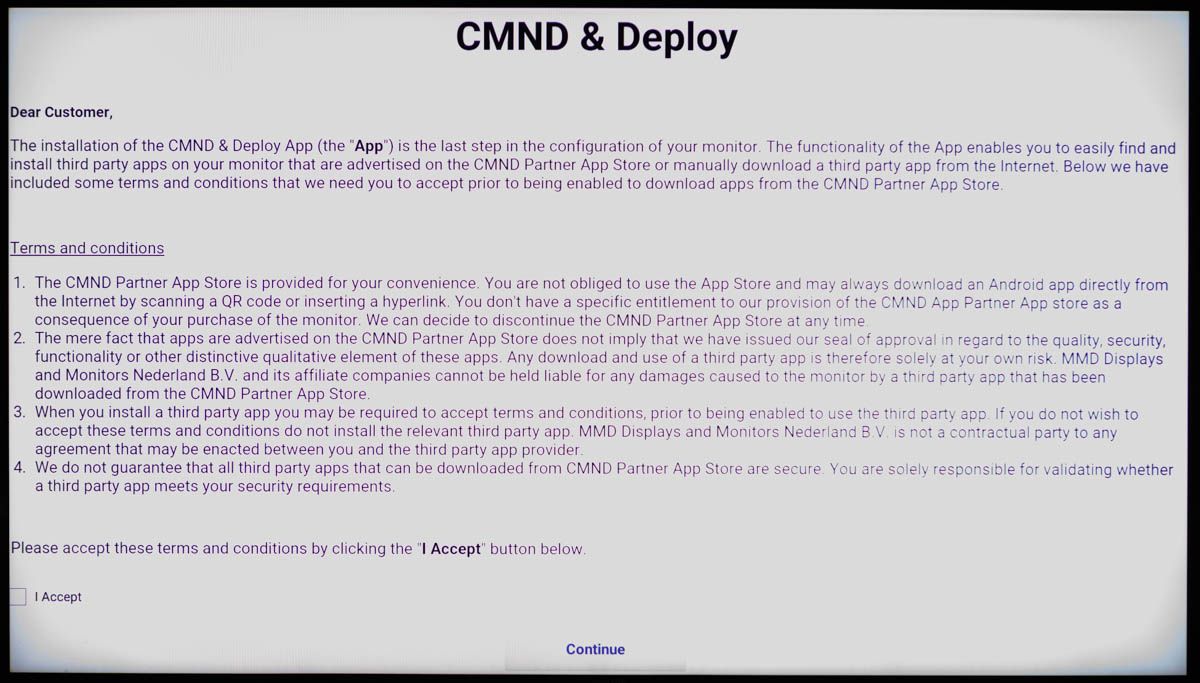
Installing Fusion Signage
You will need:
A formatted USB drive (FAT32).
The Philips remote control.
An internet connection (wired or WiFi).
Android Settings
Custom App:
Home 1888: If you are already in the Android Signage Display settings, you can skip this step.
Otherwise, press the Home > 1 > 8 > 8 > 8 key sequence on your Philips remote to access the screen.
Once the screen appears, click on "Settings".
Navigate to Signage Display.
Select Custom App.
Choose Select App to proceed with your configuration.
Font Size:
Home 1888: If you are already in the Android Signage Display settings, you can skip this step.
Otherwise, press the Home > 1 > 8 > 8 > 8 key sequence on your Philips remote to access the screen.
Once the screen appears, click on "Settings".
Go to Display under Device.
Change Font Size to normal.
Tip: This is set to ensure Designs and Websites display correctly as the font size is set to Huge by default.
Date & Time:
Home 1888: If you are already in the Android Signage Display settings, you can skip this step.
Otherwise, press the Home > 1 > 8 > 8 > 8 key sequence on your Philips remote to access the screen.
Once the screen appears, click on "Settings".
Select Date & Time under System.
Make sure to select the correct time zone for where the screen will be installed
Important: If your time zone isn't set correctly then your scheduling won't work and you may not receive an identity code from our servers.
Running Fusion Signage:
Press Source on your remote and select Custom.
Alternatively just power your screen off/on.
The Fusion App will be loaded on your screen.